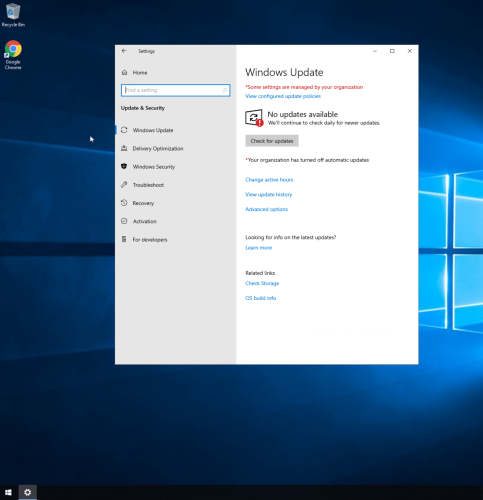
1. Click updates and security under windows settings to access windows updates and security features.
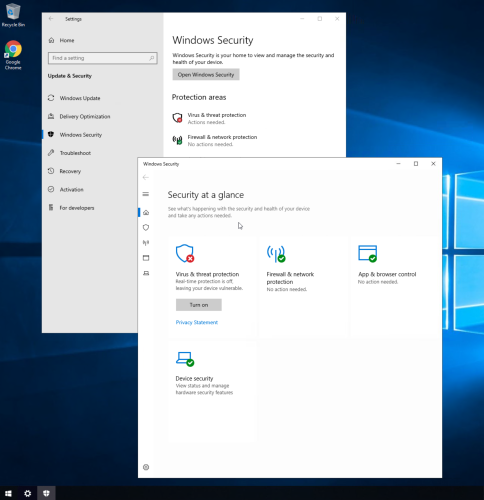
2. The windows security section shows which features are active (green checkmark) or disabled (red x icon).
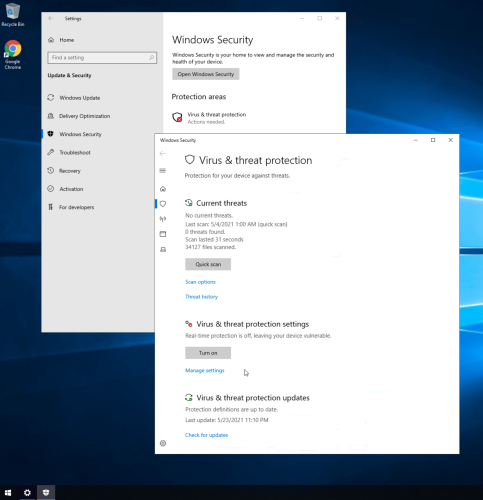
3. The virus & threat protection section gives the option to manage settings, run a quick scan, and view current threats.
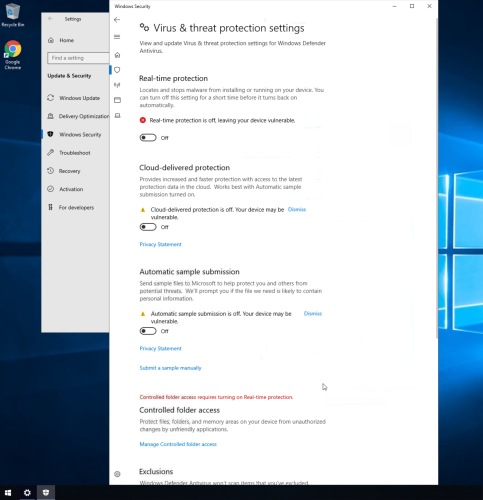
4. The virus & threat protection settings can enable various protection features, such as real-time protection, cloud-delivered protection, and automatic sample submission.
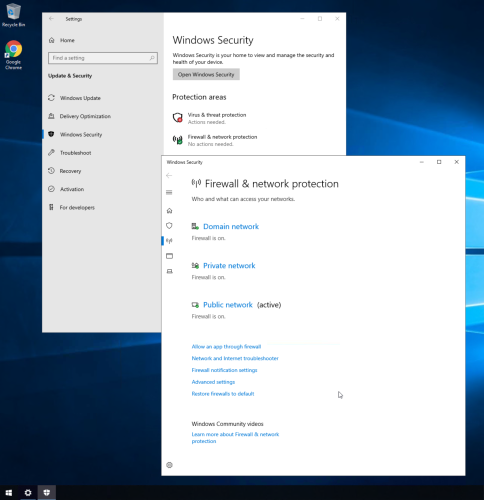
5. The firewall & network protection section shows firewall information for domain networks, private networks, and public networks.
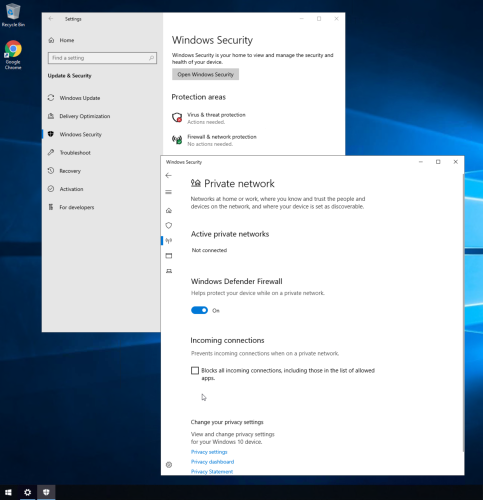
6. Clicking the private network section shows the windows defender firewall toggle and the block incoming connections check box.
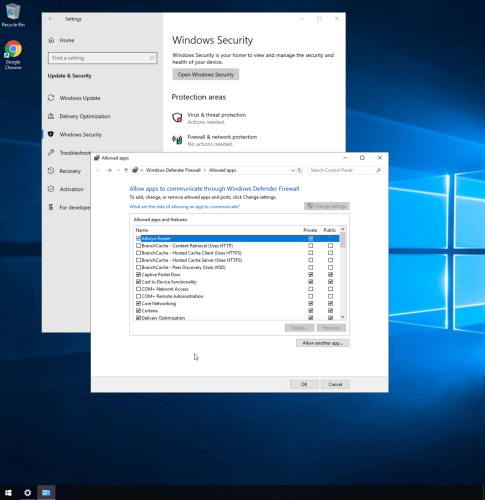
7. The Windows defender firewall shows allowed apps and provides various options to change app settings.
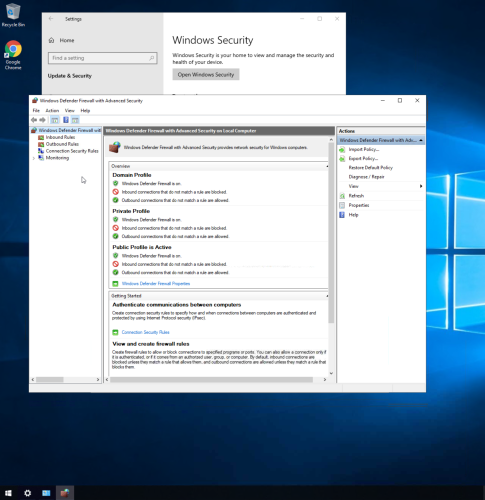
8. Windows defender firewall with advanced security shows a variety of useful firewall information, inbound/outbound rules, connection security rules, monitoring, and the ability to import/export various policies.
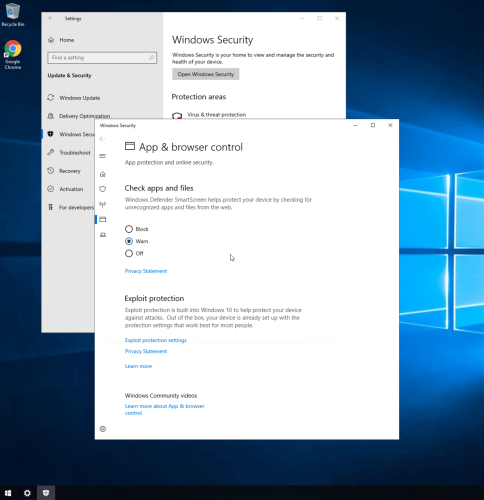
9. The app & browser control section gives the option to block, warn, or turn off protection for incoming apps and files from the web.
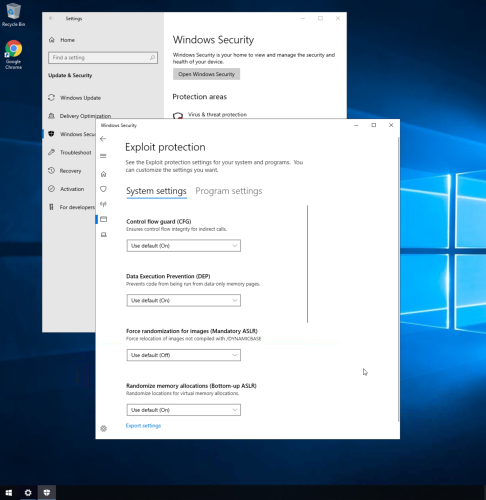
10. The exploit protection settings section gives various security options for system settings and program settings.
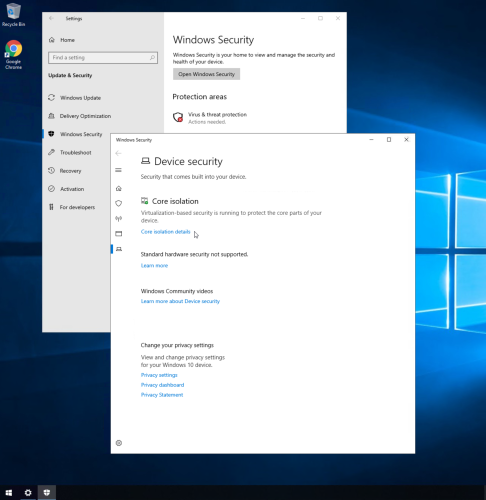
11. The device security section provides useful information and core isolation details.
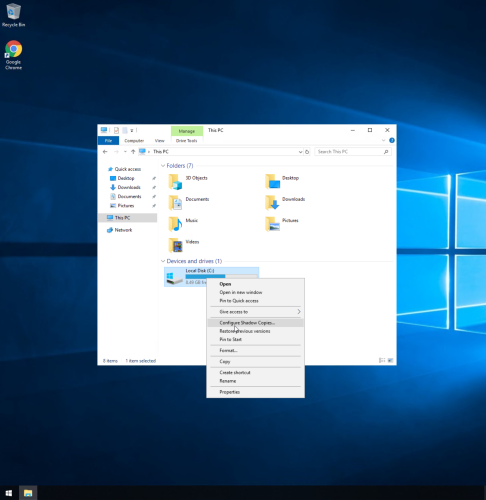
12. Right click the C drive to configure shadow copies.
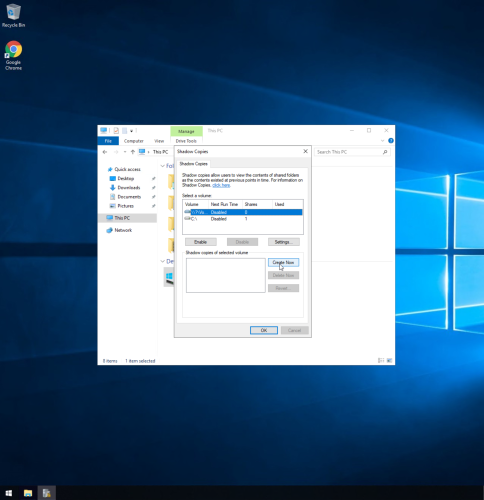
13. Shadow copies allows user to create a shadow copy of a drive, to enable/disable drives, and configure settings.