
1. This exercise uses the Wireshark program to an analyze network traffic.
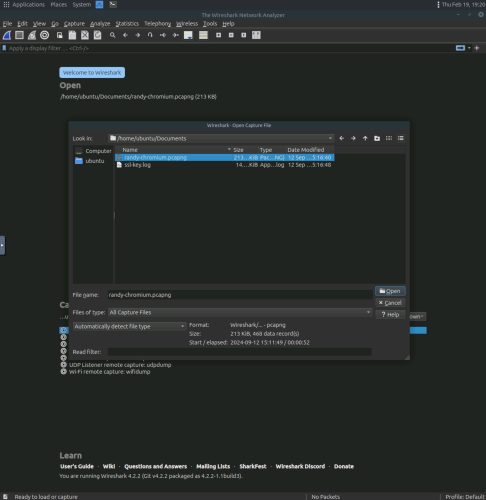
2. Use Wireshark to open the “randy-chromium.pcapng” to view the network capture file.
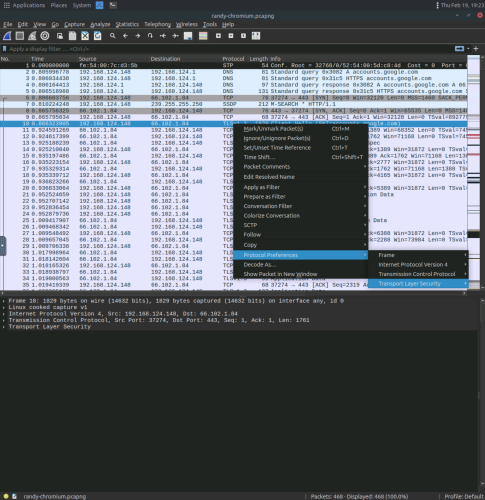
3. Right clicking a network packet gives a list of useful options, and this example shows the Transport Layer Security (TLS) under protocol preferences.
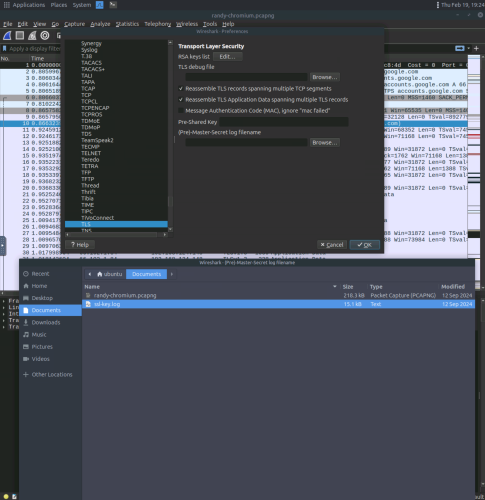
4. The TLS preferences gives an option to include a (pre)-Master-Secret log filename, and in this case the “ssl-key.log” file. This allows the user to view the contents of encrypted packets.
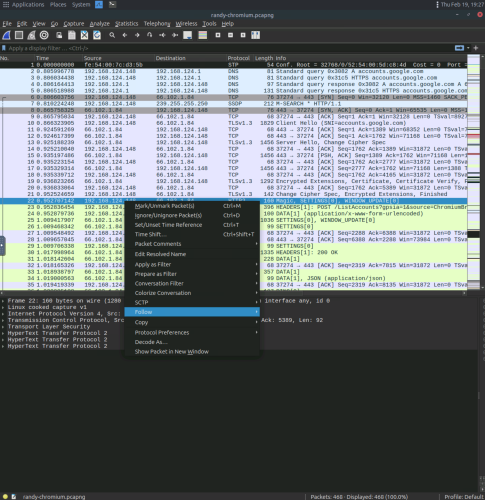
5. Right clicking a packet also gives the option to “Follow”, and in this case follow an HTTP2 stream.
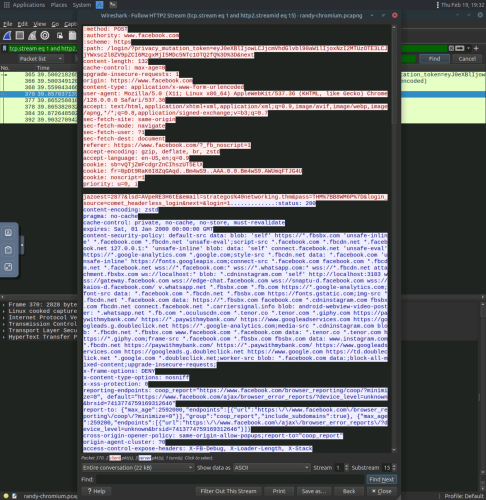
6. Following an HTTP2 stream shows the stream of packets and their contents, the red is sent by the client, and the blue is sent by the server.