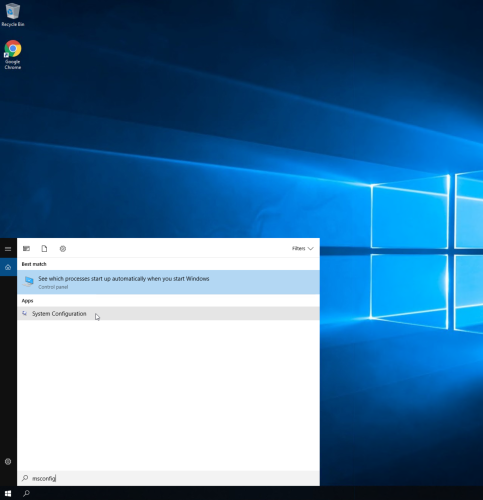
1. Search msconfig to open system configuration.
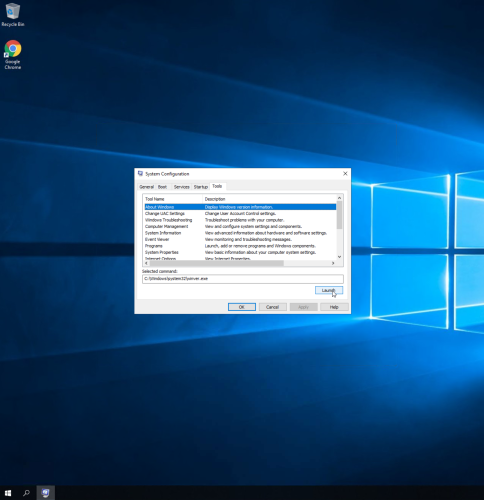
2. System configuration has many tabs (general, boot, services, startup, and tools). The tool tab shows the tool name, description, and the selected command section where we can launch the tool.
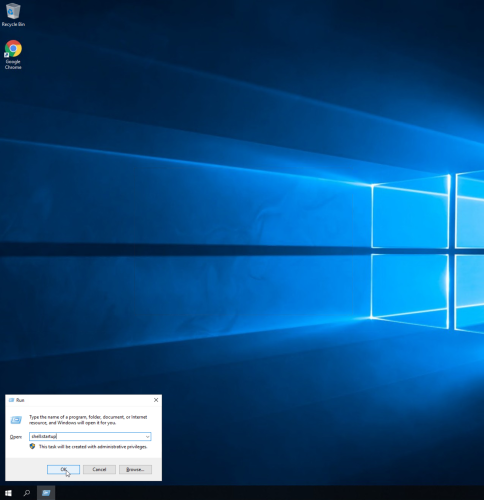
3. Using run with the command “shell:startup”.
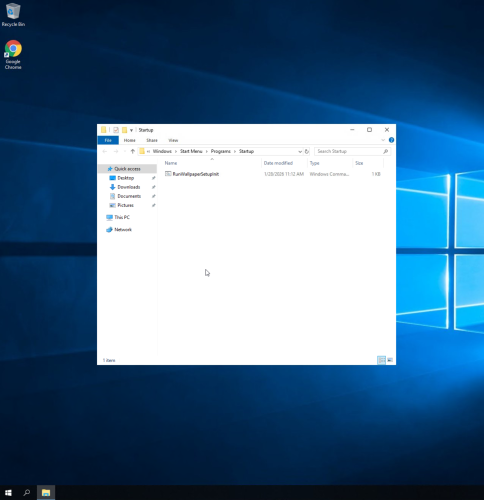
4. Here are the startup items for this Windows Server PC.
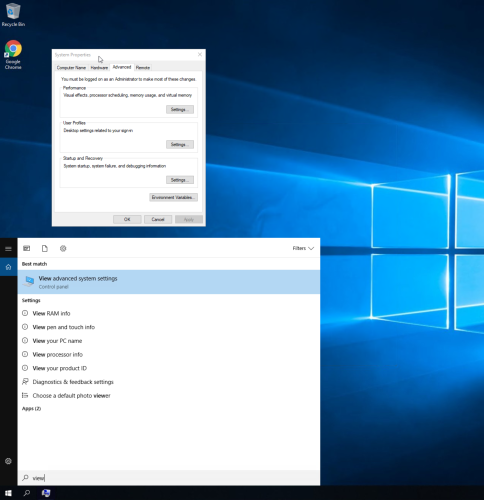
5. Search “view advanced system settings” to bring up system properties.
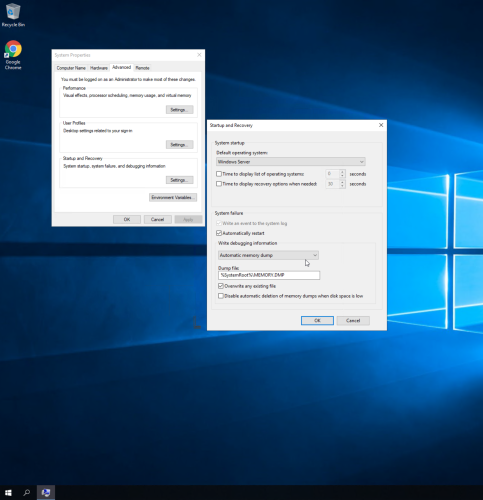
6. System properties has various tags (computer name, hardware, advanced, and remote). Click the advanced tab to view settings for performance, user profiles, and startup and recovery.
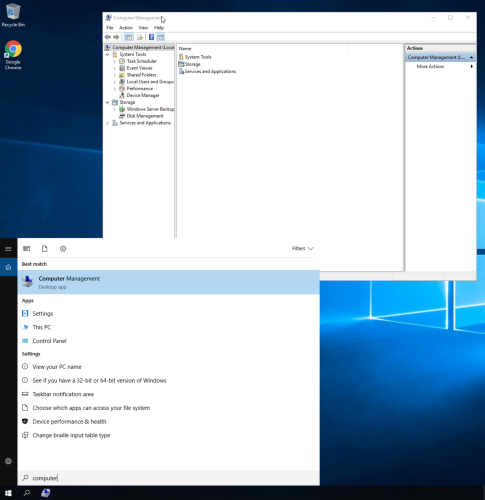
7. Search computer management and run the program to access system tools, storage, and services and applications.
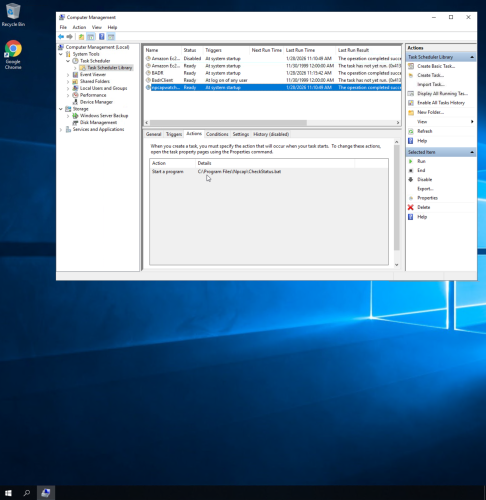
8. The task scheduler tool shows tasks, triggers, actions and other useful metrics.

9. The event viewer tool shows system logs, administrative events, and other useful metrics.
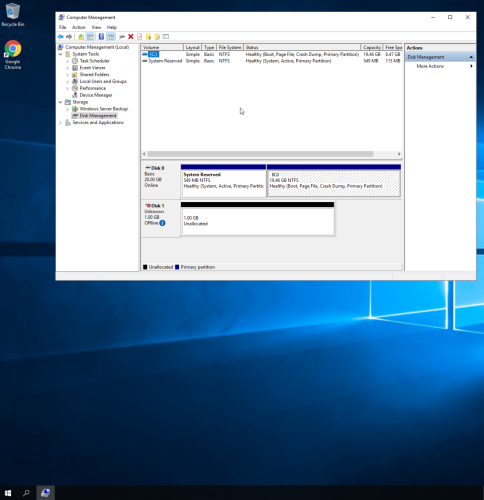
10. The disk management section under storage shows different hard drive volumes, and allows users to perform actions such as partition disks.
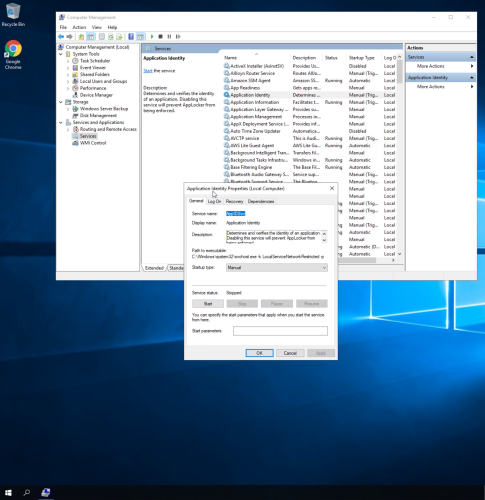
11. The services section under services and applications shows a list of services and metrics. Right clicking a service to show it’s properties.
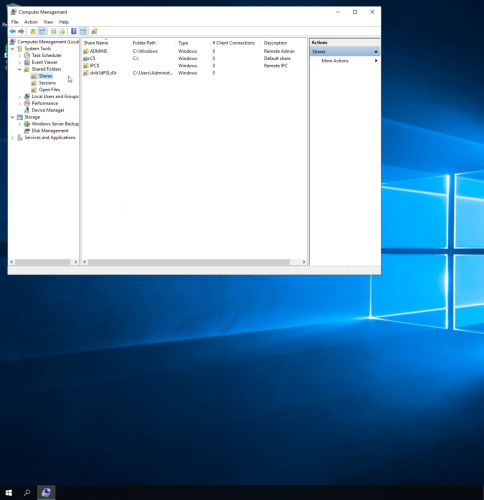
12. The shares section under shared folders shows hidden folders indicated by the $ sign.
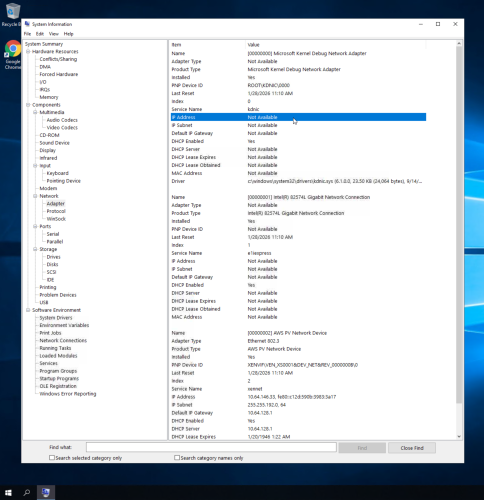
13. Search and run system information, which shows useful system information such hardware, software, and components (click adaptor under network section to view IP address).
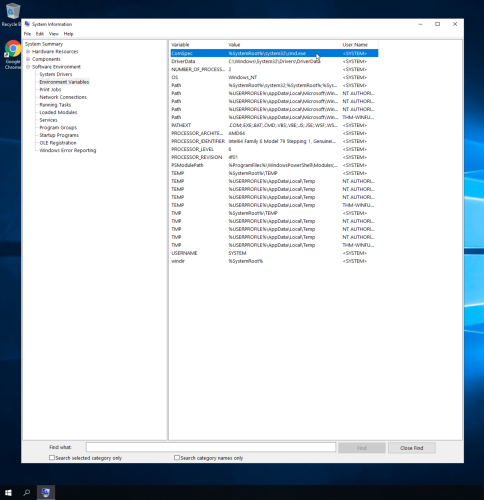
14. Another useful feature of system information is environment variables under software environment, which shows variables, values, and user names.
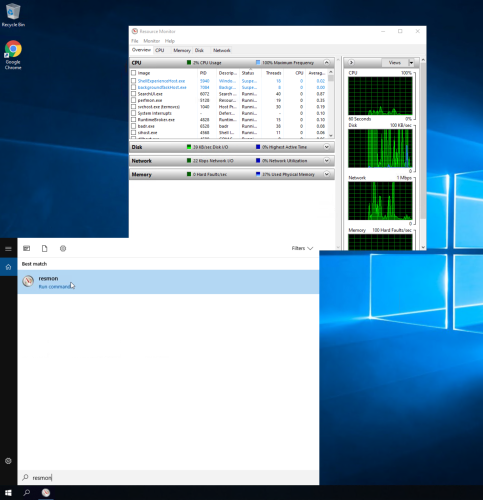
15. Search resmon to run resource monitor, which shows which programs are running and various metrics for cpu, disk, network, and memory usage.
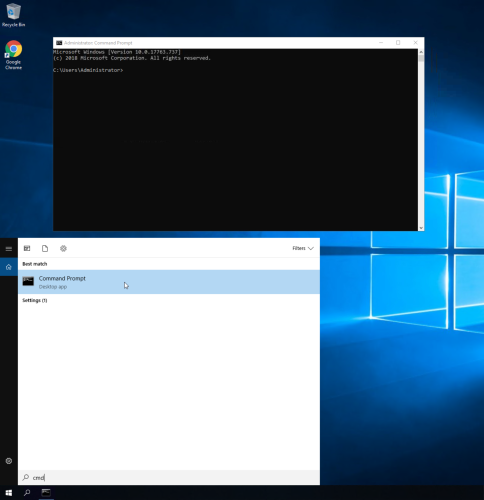
15. Search cmd to run command prompt.
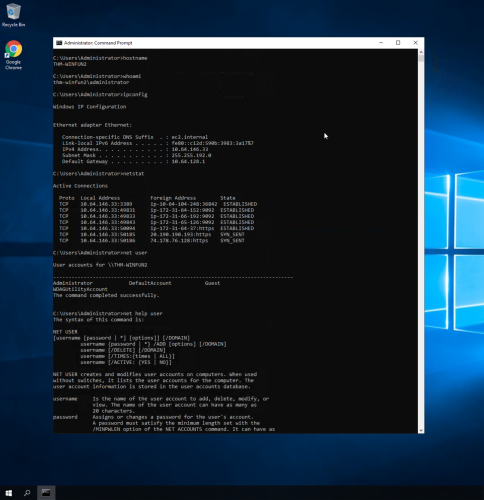
16. Command prompt allows for the use of commands such as hostname, whoami, ipconfig, netstat, and net user which display a variety of useful information.
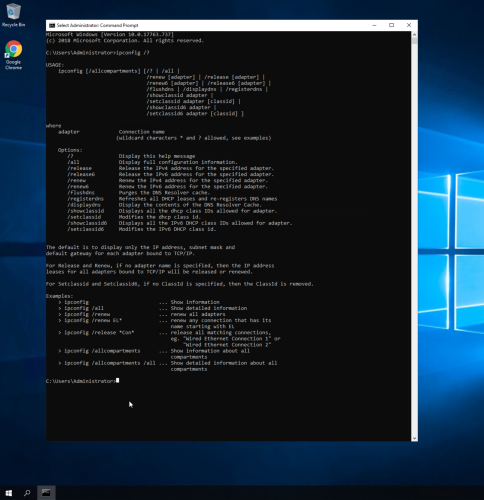
17. The ipconfig /? command shows various options to use with ipconfig such as /all, /release, and /renew.
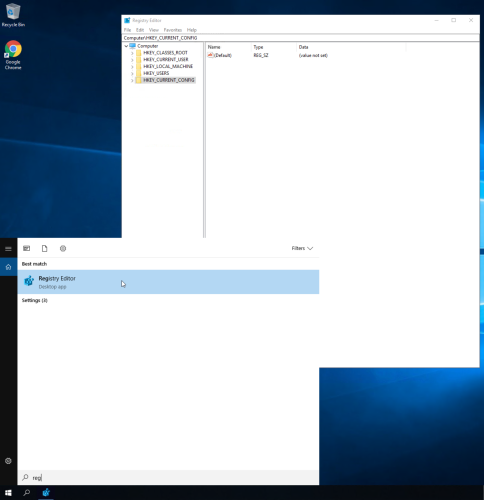
18. Search and run regedit to run the registry editor and view useful registry information.